About Image Resolution for Printing

Creating Data
Image Resolution
Even if an image looks sharp on your computer or phone, it may print blurry, jagged, or pixelated. Most of the time, this happens because the resolution is too low for printing.
Below is a simple explanation of what resolution means and how to prepare images correctly for print.
Printing Requires High Resolution
Resolution describes how detailed an image is, expressed in dpi (dots per inch)—how many dots fit inside one inch.
350 dpi (recommended)
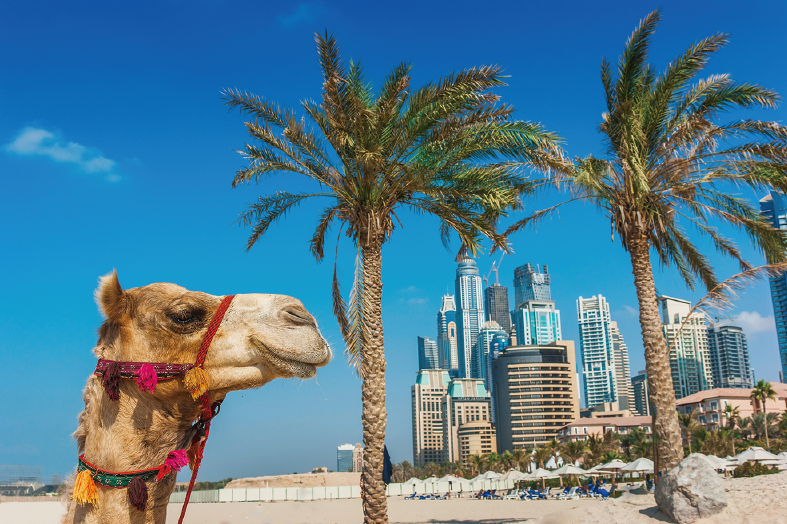
High density → produces crisp, clean prints.
High density → produces crisp, clean prints.
72 dpi (Web images)
Low density → looks fine on screens but prints blurry or blocky.
Low density → looks fine on screens but prints blurry or blocky.
Web Images Are Not Suitable for Printing
Images used on websites, SNS, or online catalogs are usually saved at 72 dpi to keep file sizes small and pages fast.
They look sharp on-screen because monitors do not require high dpi.
But when printed, the lack of dot density becomes obvious, resulting in:
- jagged edges
- blurry details
- “mosaic-like” pixelation
This is why images copied from the internet rarely print well.
How to Check and Set Resolution in Adobe Photoshop
When preparing images for print, follow these steps:
How to check in Illustrator:
- Open the Image Size panel
Menu: Image → Image Size - Uncheck “Resample”
This is important.
With “Resample” OFF, Photoshop will not create new pixels. It will only report the true resolution. - Enter the required resolution (e.g., 350 pixels/inch)
- Watch the Width/Height update automatically
Photoshop will adjust the physical print size based on the real amount of pixel data.
Example:
An 800 × 800 px image at 350 dpi will only print small (about 58 × 58 mm).
If you try to print it larger, quality will drop.

Important Note
If an image starts as low resolution, increasing the dpi number does NOT improve quality.
Changing “72 dpi” to “350 dpi” in the menu does not add detail—it just changes the math.
If you wish to proceed with low-resolution images anyway, please mention it in the order notes so we can print according to your instructions.


 Japan
Japan