About Creating Outlines for Text

Creating Data
Text to Outline
When submitting print-ready data, one of the most important steps is converting text to outlines.
This prevents data-related issues and the need for resubmission, so please make sure to outline all text before sending your files.
What Does “Outlining Text” Mean?
“Outlining” is the process of converting text (font information) created in Illustrator or similar software into vector shapes (paths).
In other words, it transforms the text so that it is no longer treated as editable characters, but as artwork.
Why Is Outlining Necessary?
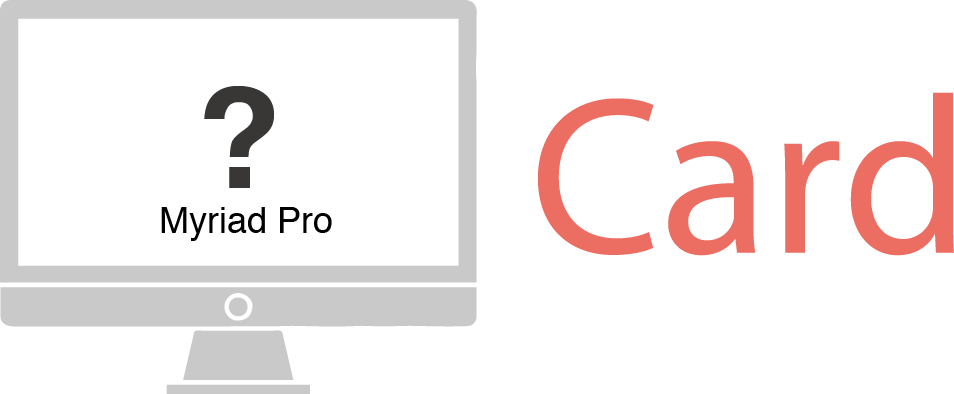
The fonts installed on your computer may not exist on the computers used in our printing facility.
If you submit your data without outlining, and the printing workstation does not have the same fonts you used, the system will automatically substitute a different font.
This can cause:
- Changes in the shape or style of the text
- Layout shifting
- Garbled or corrupted characters
- A finished product that looks different from your intended design

How to Convert Text to Outlines (Adobe Illustrator)
Important: Before You Begin
Once text is converted to outlines, it can no longer be edited as text. For this reason, please save a backup of your editable file before outlining.
We recommend the following workflow:
- Save your original file as: “Filename_edit.ai” (editable version)
- Save a copy as: “Filename_print.ai” (for outlining and submission)
- Perform all outlining work in the print version.
Step 1: Unlock All Objects
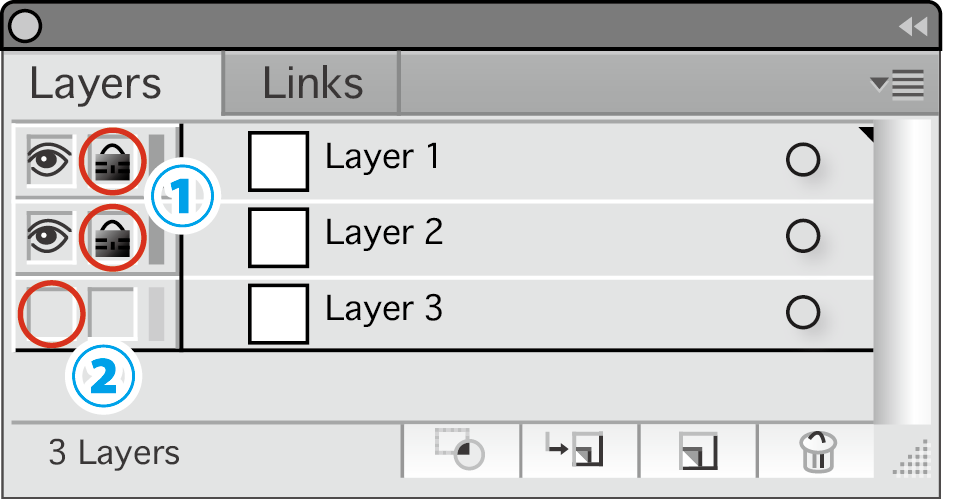
- If any layers or objects are locked, they will not be outlined.
- In the menu bar, go to Object → Unlock All.
- Also check the Layers panel to confirm no locks remain.
Step 2: Select All Objects
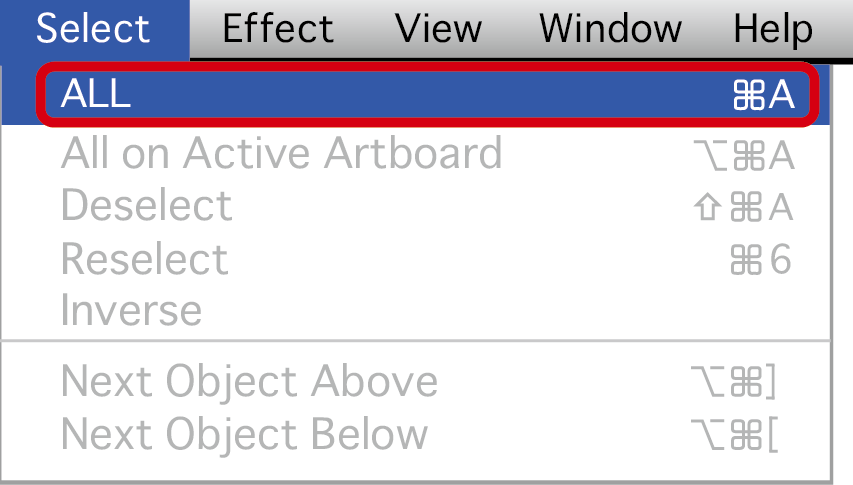
- Using the shortcut ensures nothing is missed.
Windows: Ctrl + A
Mac: Command + A
Step 3: Create Outlines
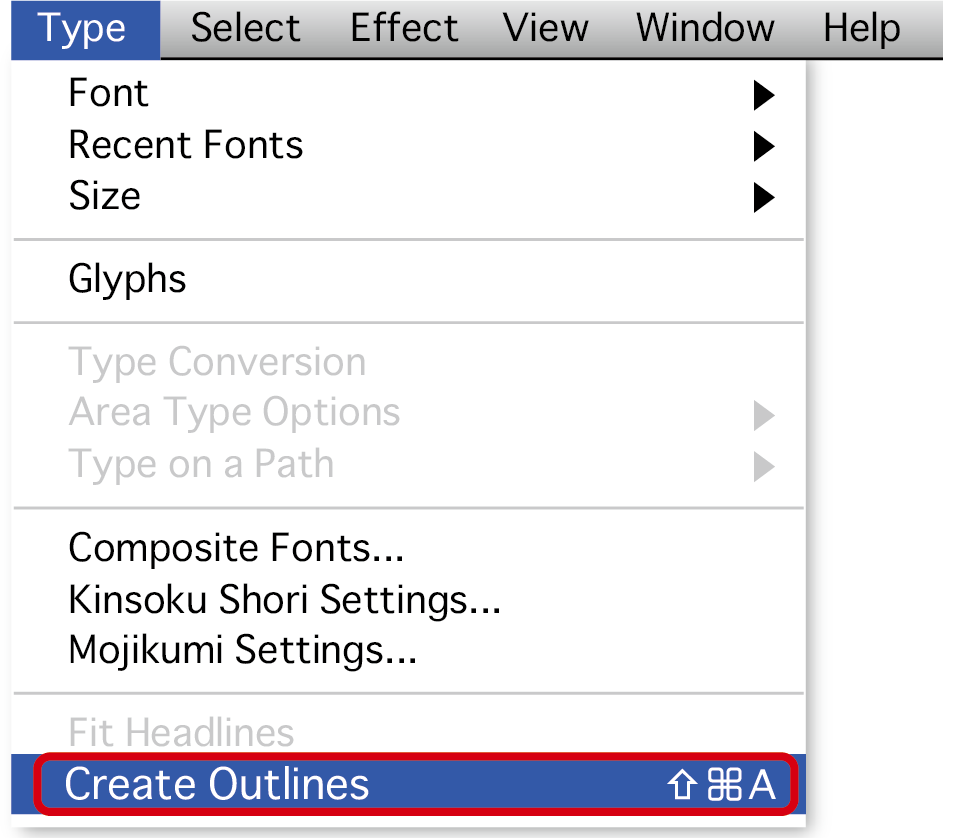
- With everything selected:
From the menu:
Type (or Text) → Create Outlines - Shortcut:
Windows: Ctrl + Shift + O
Mac: Command + Shift + O
All text will now be converted into vector shapes.
How to Check Whether Outlining Was Done Correctly
Because it can be difficult to judge visually, we recommend verifying the outline status directly in the file.
-
Open the Document Info panel
From the top menu, go to:
Window → Document Info -
Switch the panel display to “Objects”
In the upper-right corner of the Document Info panel, open the menu and select:
Objects -
Check the “Fonts” field
Look for the Fonts entry in the list.
If outlining is done correctly, it should show:
Fonts: 0
If any number other than “0” appears
This means there are still text objects remaining somewhere in the file.
Possible causes:
- Text that was not outlined
- Hidden layers containing text
- Locked objects
- Stray points containing text data
Please try the following:
Object → Unlock All
Object → Show All
Select all again and repeat Create Outlines.
Characters That Cannot Be Outlined
When using the following Illustrator features, please make sure to outline all text before applying them.
(Please note that data created using these features is excluded from our data-check service.)
Using the Envelope feature (Illustrator 10 and later)
If you want to use the Envelope feature in Illustrator, make sure to outline your text first.
(Outlining prevents font issues during printing.)
If you have already applied an Envelope to live text:
You must release/expand the Envelope before outlining.
Please follow these steps:
Select the object that has the Envelope applied.
Go to Object → Envelope Distort → Expand.
This will convert the Envelope object into editable shapes.
After expanding, outline the text if needed.
Graph Tool
Text within charts created using the Graph Tool cannot be outlined by selecting it directly.
To outline these numbers and labels:
Select the graph.
Go to Object → Ungroup.
Once ungrouped, you can select each text element individually and apply Create Outlines.
Please note that you may need to repeat “Ungroup” multiple times until all elements become individually selectable.
Pattern Swatch Function
When creating patterns that include text, please outline all text before generating the pattern.
If you have already applied the Pattern Swatch function:
- Select the pattern object.
- Go to Object → Expand / Expand Appearance.
- After expanding, apply Create Outlines to the text elements.
This ensures that no live text remains and prevents unexpected font substitutions during printing.
Handling of Isolated Points (“Ghost Fonts”)
When you click on the artboard with the Type Tool and then switch tools without entering any text, Illustrator creates an “isolated point”—sometimes called a ghost font.
This leftover text object contains font information even though no characters are visible.
Isolated points left in your data may cause output issues during printing.
Before submitting your file, please be sure to locate and delete all isolated points.
(Please note: Files that contain isolated points may be considered outside the scope of our data check.)
Removing Stray Points in Illustrator
Stray points are tiny, unwanted anchor points left behind when a tool click creates a point with no path or text. These can cause output errors, so please remove them before submitting your file.
Method 1: Automatic Cleanup (Recommended)
- Go to Object → Path → Clean Up
- Check Stray Points
- Click OK to remove them all at once.
Method 2: Manually Select and Delete
- Go to Select → Object → Stray Points
- Illustrator will highlight all stray points
- Press Delete to remove them.
About Gradient-Applied Text
In some cases, when you outline text in Illustrator (version 8 and later),the outlined text may unexpectedly appear with a gradient fill.
This happens when the original text object had a gradient applied to its fill, even if the gradient was not visibly reflected on screen before outlining. Because Illustrator does not always display this correctly prior to outlining, it can be difficult to notice beforehand.
Unfortunately, there is no method to completely prevent this behavior.
Please be sure to check your artwork carefully after outlining text to confirm that no unintended gradients have appeared.


 Japan
Japan